Learn
How to Convert ChatGPT Output to PDF
Copy a ChatGPT answer as Markdown and turn it into a professional PDF you can send, with headings, lists, tables, and code preserved.
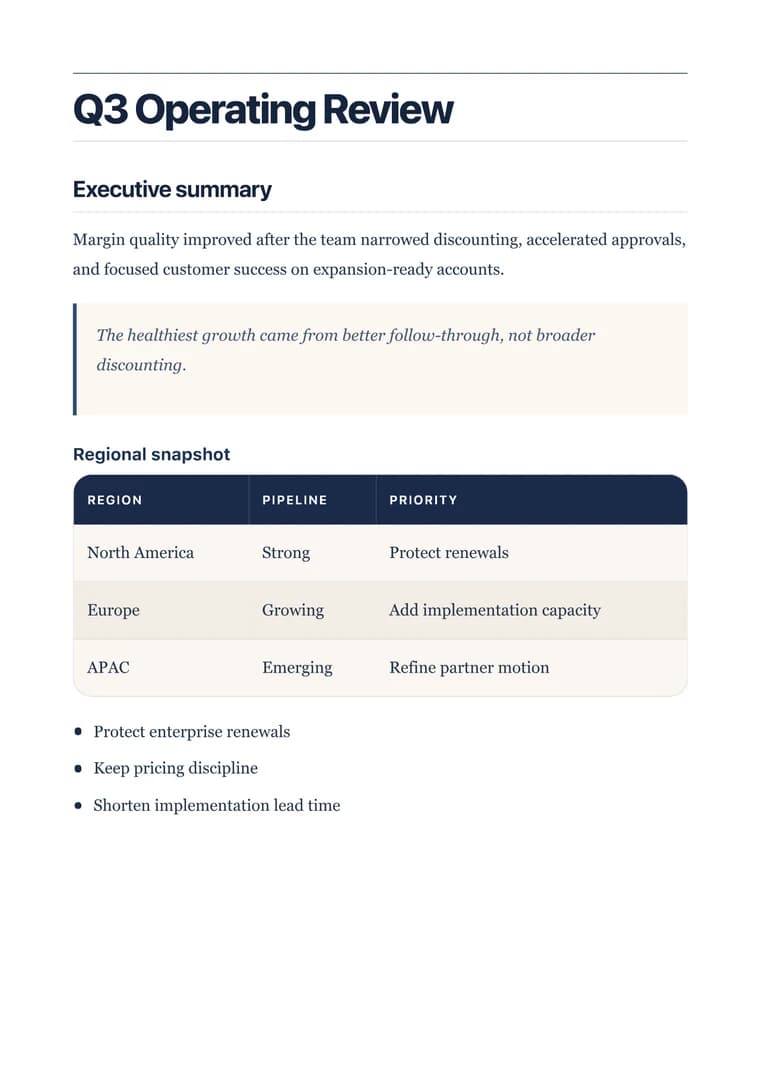
What you will produce
Try the related templateOn this page
ChatGPT replies in Markdown, so the fastest way to turn an answer into a shareable PDF is to copy the response, paste it into the converter, choose a template, and export. The formatting ChatGPT produces — headings, numbered steps, tables, and code blocks — carries straight through.
ChatGPT is great at drafting reports, specifications, study notes, and outlines. The slow part is making that draft presentable enough to send to a client, a professor, or a manager. Converting the Markdown directly skips the manual reformatting in a word processor.
Ask for Markdown to get the cleanest result
If you want the tidiest export, tell ChatGPT to “format the answer in Markdown.” You’ll get explicit headings and lists instead of loose paragraphs, which gives the converter a clear structure to lay out.
The workflow
- Hover the message and use Copy to grab the Markdown.
- Paste it into the converter.
- Pick a template — Clean for notes, Executive for anything client-facing.
- Preview, then export the PDF.
Clean up before exporting
A raw chat answer usually needs a couple of small edits:
- Delete conversational filler (“Sure! Here’s…”) so the document opens with real content.
- Shorten headings that ChatGPT made overly long.
- Add a language to any code block that’s missing one, so syntax highlighting is correct.
- Trim wide tables to the columns that matter so they fit the page.
Why a converter beats copy-pasting into Word
Pasting ChatGPT output into a word processor tends to import odd fonts, broken spacing, and inconsistent bullet styles. A Markdown-to-PDF converter renders from the structure instead of the styling, so you get consistent typography, even margins, and properly formatted code every time — and you can re-export an updated answer in seconds.